Two-factor authentication
Bimbal® allow and recommand two-factor authentification. Two-factor authentication (2FA) is a way to improve security, and prevent unauthorized persons from accessing user accounts. Practically, 2FA means storing a secret inside an authenticator, usually on a mobile phone, and exchanging a code from the authenticator when trying to log in. This means an unauthorized user would need to guess the account password and have access to the authenticator, which is a more difficult proposition.
Requirements
- Authy
- FreeOTP
- Google Authenticator
- LastPass Authenticator
- Microsoft Authenticator
- 1Password
- Bitwarden
Two-factor authentication setup
After selecting an authenticator, log in to Odoo, then click the profile avatar in the upper-right corner, and select My Profile from the resulting drop-down menu.
Click the Account Security tab, then slide the Two-Factor Authentication toggle to active.
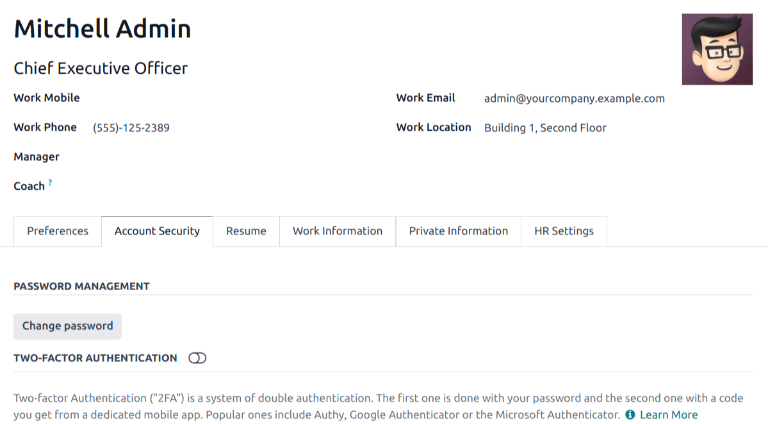
This generates a Security Control pop-up window that requires password confirmation to continue. Enter the appropriate password, then click Confirm Password. Next, a Two-Factor Authentication Activation pop-up window appears, with a QR code.
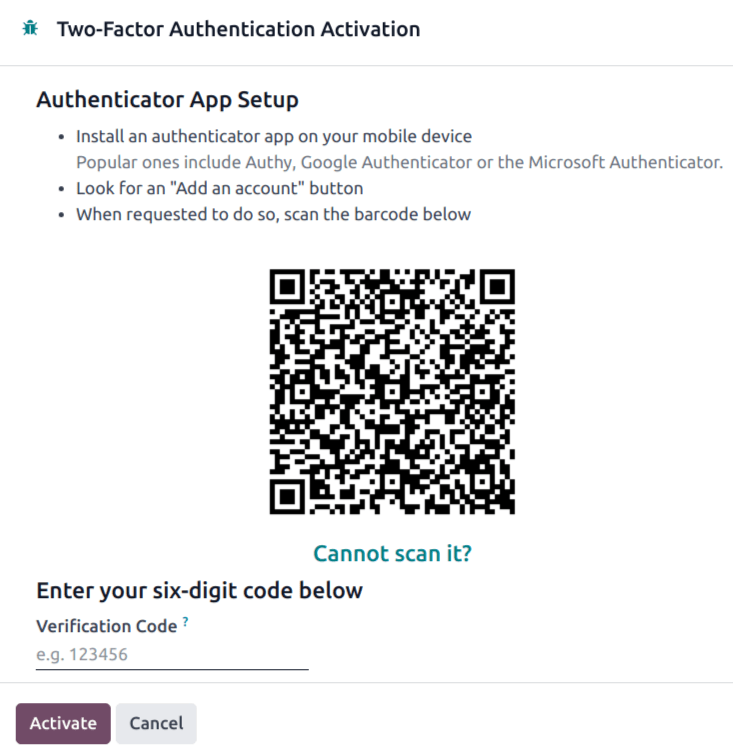
Using the desired authenticator application, scan the QR code when prompted.
Tip! If scanning the screen is not possible (e.g. the setup is being completed on the same device as the authenticator application), clicking the provided Cannot scan it? link, or copying the secret to manually set up the authenticator, is an alternative.


Afterwards, the authenticator should display a verification code.

Enter the code into the Verification Code field, then click Activate.
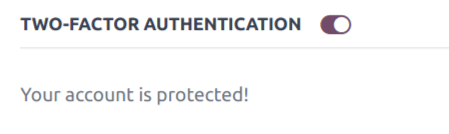
Logging in
To confirm 2FA setup is complete, log out of.
On the login page, input the username and password, then click Log in. On the Two-factor Authentication page, input the code provided by the chosen authenticator in the Authentication Code field, then click Log in.

Bimbal® | ERP Software for construction companies
Copyright Bimbal® Inc | www.bimbal.com | info@bimbal.com | Terms & Conditions: https://www.bimbal.com/terms
Back to website User Guide Home