Progress Report
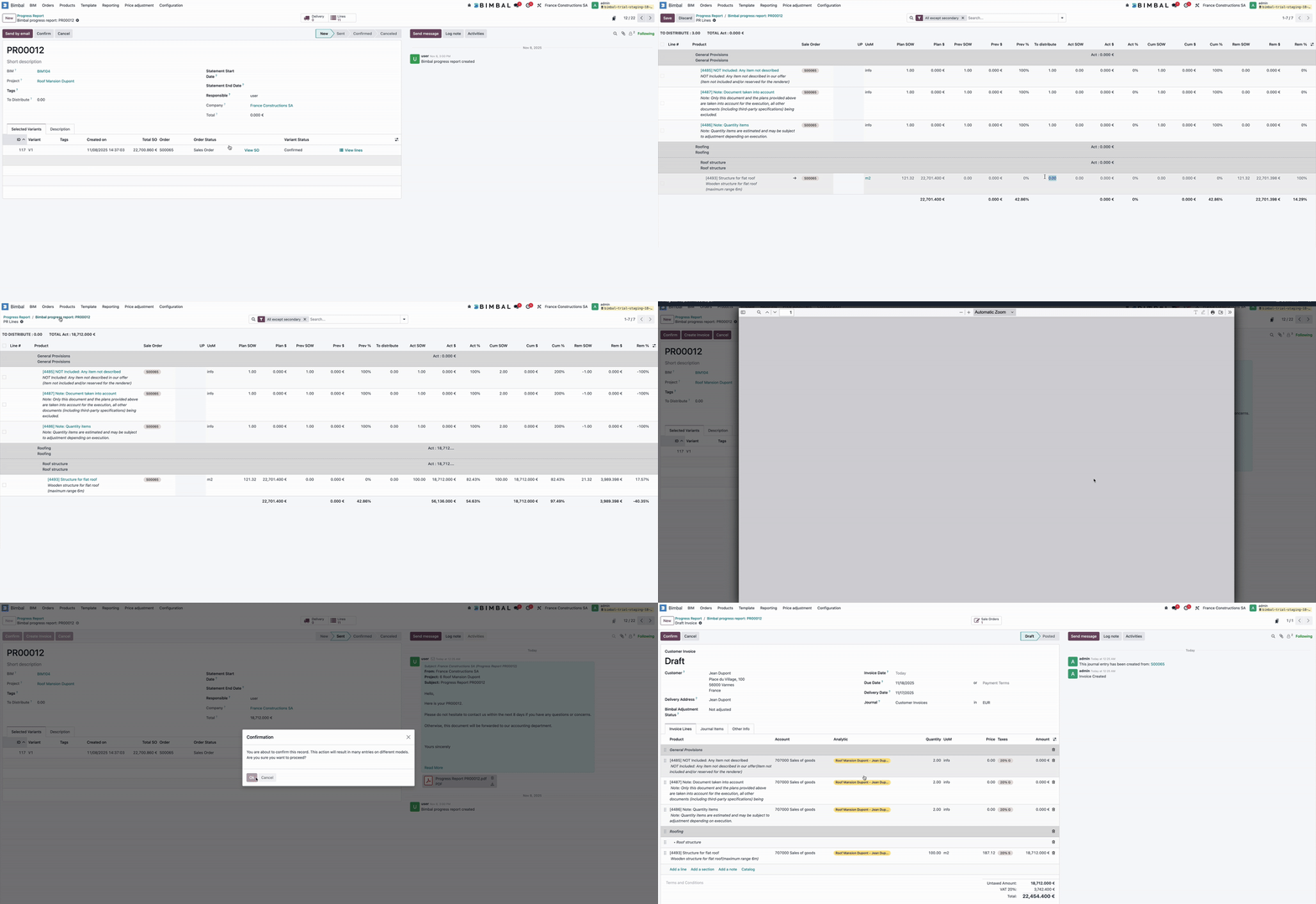
A Progress Report is a periodic document used to record the actual quantities of work executed during a specific time period (Actual SOW — State of Work).
It allows contractors and clients to review, validate, and agree on the delivered quantities before any invoicing occurs, ensuring transparency and avoiding disputes.
Once validated and confirmed, a Progress Report generates the delivered quantities on the related Sale Order Lines (via stock.picking), forming the basis for accurate and compliant progress billing.
Workflow & Lifecycle
Every Progress Report follows the same lifecycle and can move through these states:
|
State |
Meaning |
|---|---|
|
New |
Draft state. Quantities can be entered, edited, distributed, or adjusted |
|
Sent |
The Progress Report has been sent to the client (PDF via chatter). The client may comment or request adjustments |
|
Confirmed |
Final approval. Quantities are locked, and corresponding delivery entries (stock moves) are generated |
|
Canceled |
Progress Report is canceled and no longer impacts deliveries or invoicing |
Once Confirmed, Bimbal displays a safety alert:
“You are about to confirm this record. This action will result in many entries on different models. Are you sure you want to proceed?”
Multi–Sale Order Capability
- directly on Secondary Lines,
- or globally on Primary Lines, then use distribution actions.
Actual SOW (State of Work)
- quantities, or
- percentages (e.g., 20% to deliver 20% of the ordered quantity).
This value determines how much will be delivered and invoiced.
Distribution Tools
- Distribute by Lock Date
Distributes quantities chronologically based on the confirmation order of the Sale Orders. Distribute by Max Profit
Distributes quantities to maximize revenue, sending quantities to the most profitable lines first.
Additional Tools
- Set Remaining SOW
Automatically fills the Actual SOW to deliver all remaining ordered quantities. - Clear Actual SOW
Resets all Actual SOW values back to zero.
Key SOW Fields
Each Progress Report line displays essential information to help the user understand the delivery status:
|
Field |
Meaning |
|---|---|
|
Plan SOW |
The ordered quantity from the Sale Order. |
|
Previous SOW |
Quantity already delivered before the current Progress Report. |
|
Actual SOW |
Quantity delivered in the current period. |
|
Cumulative SOW |
Total delivered = Previous SOW + Actual SOW. |
|
Remaining SOW |
Quantity still to be delivered. |
All these values are also displayed as percentages.
Communication with the Client
- printed as PDF,
- sent to the client via the chatter,
- discussed and corrected before confirmation.
This makes the Progress Report a central tool for transparent progress tracking, communication, and invoicing validation.
Bimbal® | ERP Software for construction companies
Copyright Bimbal® Inc | www.bimbal.com | info@bimbal.com | Terms & Conditions: https://www.bimbal.com/terms