Variant
Each Variant contains the additions, removals, or modifications you would apply to his BIM.
Together, Variants form the full evolution of the BIM over time.
A Variant records incremental changes to the BIM: added items (+), removed items (–), or unchanged values (0).
Bimbal compiles the Variant Lines and merges them into the BIM.
How a Variant Works
- A Variant can be created at any time to record a new set of changes
- One Variant = one group of modifications to one BIM
- Variants contain Variant Lines, which correspond to the BIM Lines they affect
- Only confirmed Variants contribute to the BIM fusion
- Variants allow you to structure every change from the initial design to the As-Built state of the BIM
- Variants can be viewed, filtered, exported, or used for technical, financial, or contractual review
- With Bimbal, an offer is always created from a Variant
Key Variant Fields
- New (status when a variant is created. This status allows the variant to be edited)
- Locked (status automatically activated if SO generated. Does not allow editing. Does not total quantities in BIM)
- Sent (status automatically activated if SO sent to customer via chatter. Does not allow editing. Does not total quantities in BIM)
- Cancelled (status automatically set if SO cancelled. No longer allows editing. Cancels quantities in BIM)
NB: it is possible to modify the status of a variant directly in the variant edition popup, without going through the SO. This can be used, for example, to take into account variations in quantities without customer implications
.
- Total Cost
- Subtotal
- Margin
- Fiscal Position
- Invoice Address
- Delivery Address
- Pricelist
- Track every modification, internal or requested by the client
- Keep a full audit trail of all changes
- Simulate scenarios or alternatives
- Confirm only what is contractually agreed
- Consolidate confirmed changes into the BIM
- Maintain a precise As-Built state of the BIM
Variants ensure transparency, control, and traceability throughout the entire project.
Default values in the lines of a new created Variant :
(The logic below applies when creating a new Variant but not when duplicating a Variant)
The creation of a variant (Create Variant) can exhibit different behaviors depending on whether the "Variant duplication options" setting is enabled.
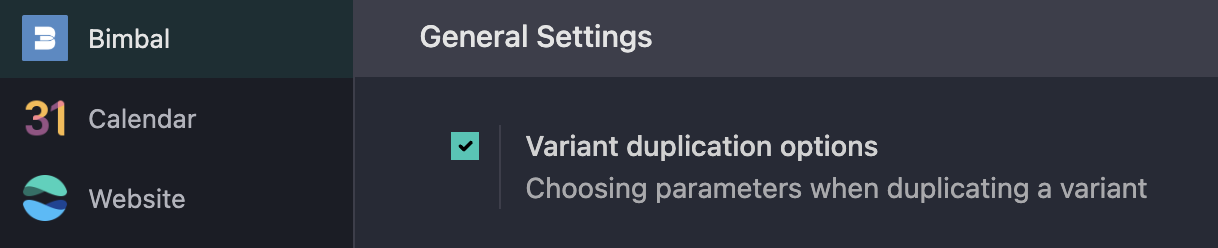
If the "Variant duplication options" setting is enabled, the popup below will appear when creating a new Variant.
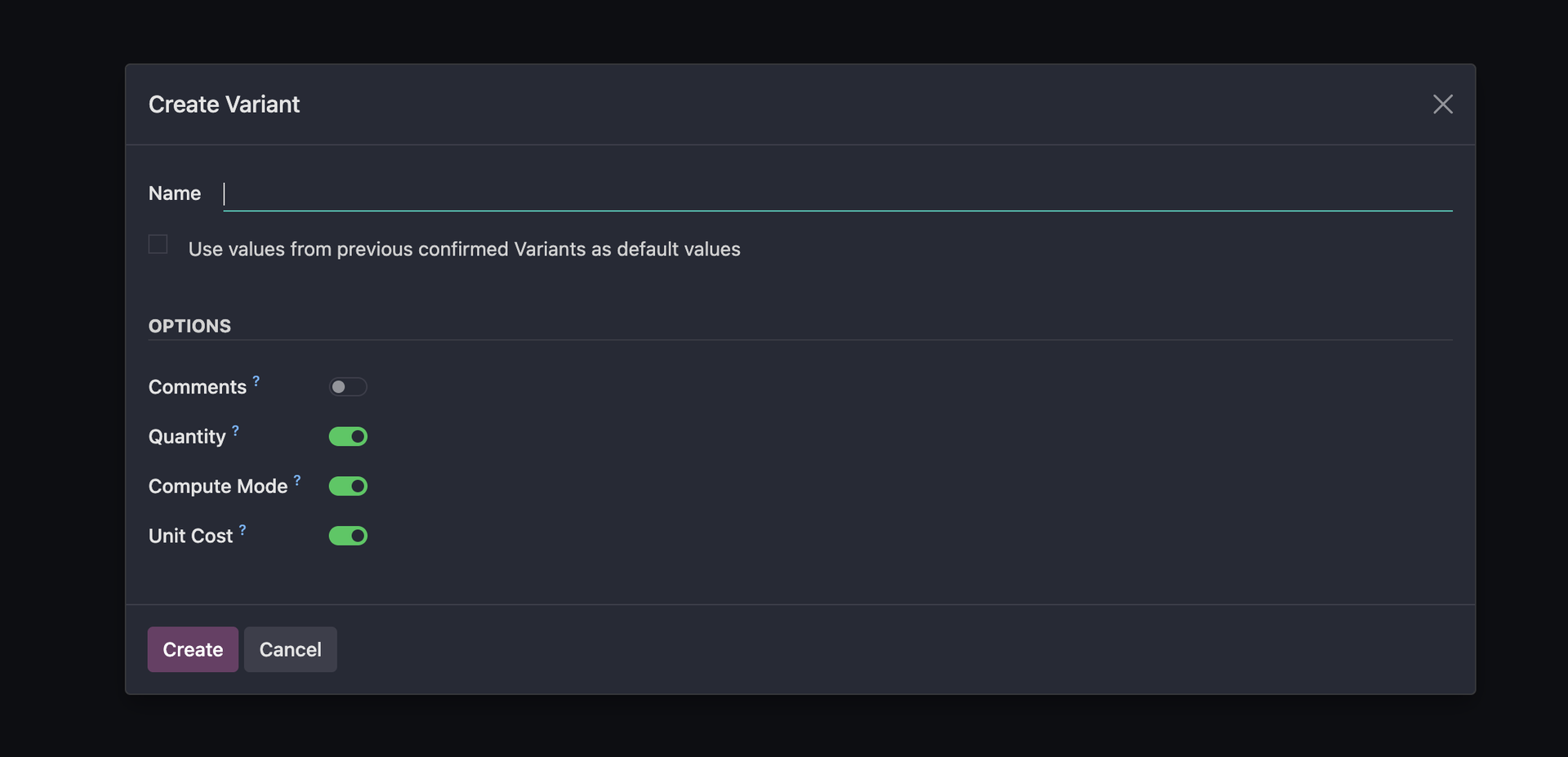
The default values are based on the oldest confirmed variant. This is based on the date the variant reached the Confirmed status (lock_date).
Priority | Situation | Field: Quantity | Field: Unit Cost | Field: Compute Mode |
1 | If the line have no parent product line: | Zero value | Cost value of the product (except if computed by child lines values) | Value "C" |
2 | If the parent line has been used (based on non-zero Total Quantity) in at least one confirmed Variant: | Value from this line in the oldest confirmed Variant (based on lock_date) where the parent line has been used | Same | Same, except Mode "F" |
3 | If the parent line has not been used in any confirmed Variant: | Value from the corresponding BoM (if the line belongs to a BoM) | Cost value of the product | Value "C" |
4 | If the line does not belong to any BoM: | Zero value | Cost value of the product | Value "C" |
Bimbal® | ERP Software for construction companies
Copyright Bimbal® Inc | www.bimbal.com | info@bimbal.com | Terms & Conditions: https://www.bimbal.com/terms